 ChessMovio
Databases
Mount and search external chess databases
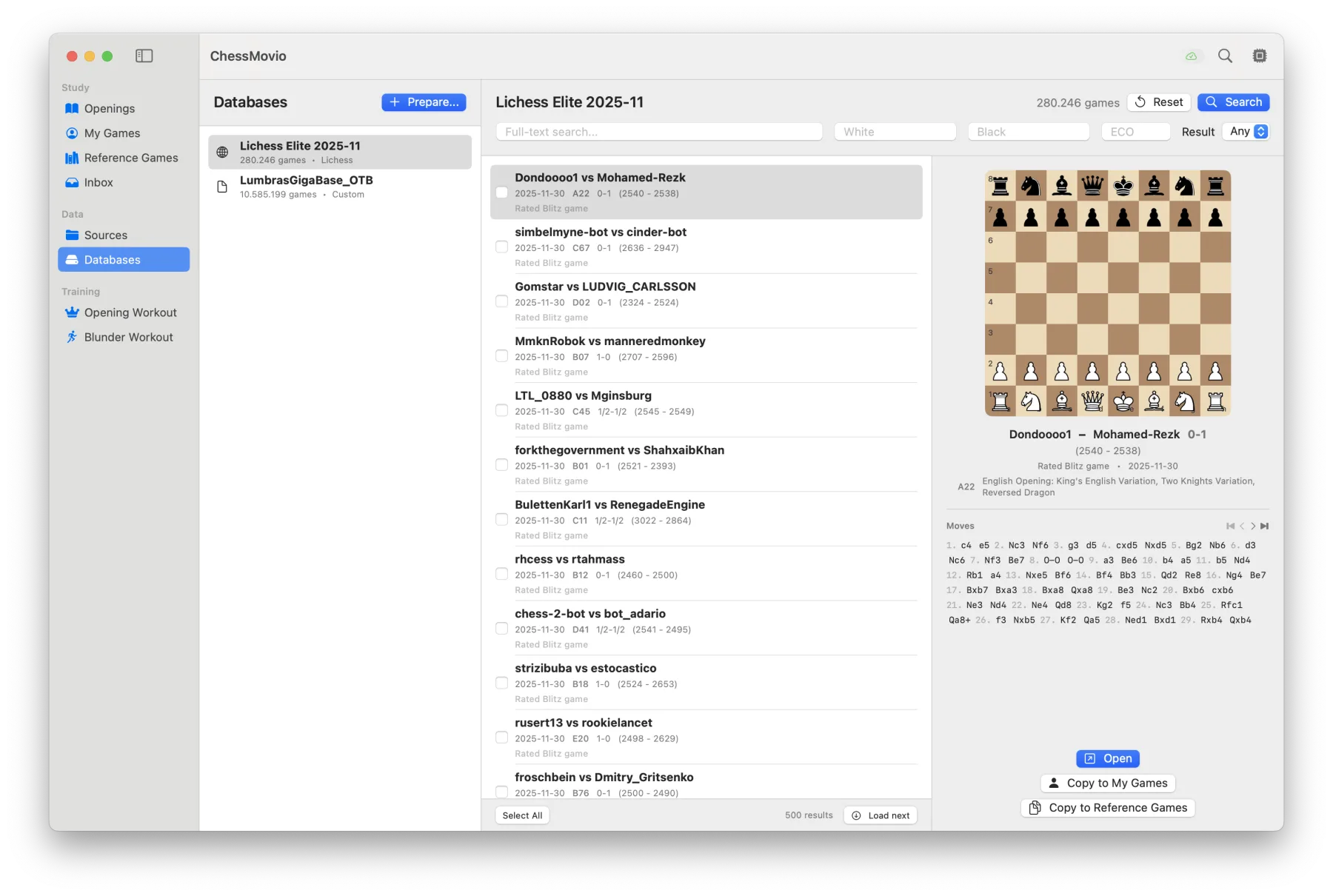
The Databases feature lets you mount and search large external chess databases directly within ChessMovio. This is a powerful tool for opening preparation and game research, giving you access to millions of games without importing them all into your local library.
What Are External Databases?
External databases are large, pre-compiled collections of chess games stored in database archive files. Rather than importing these massive collections into ChessMovio's internal database (which would be impractical for millions of games), ChessMovio mounts them as external read-only resources. You can then search, browse, and selectively import individual games.
The primary supported format is Lichess database archives, which contain millions of games played on the Lichess platform, organized by month.
Getting Database Files
Lichess Database Archives
Lichess publishes its complete game database as monthly archive files. These are freely available for download:
- Visit the Lichess database page to find monthly game archives.
- Download the archive file for the month(s) you are interested in.
- Save the file to a location accessible from your Mac (local storage or an external drive).
Each monthly archive contains all rated games played on Lichess during that month, typically millions of games.
Lichess Master Database
In addition to the monthly player archives, ChessMovio supports downloading the Lichess Master Database, which contains games played by titled players and strong amateurs. This is a curated, higher-quality subset that is particularly useful for opening preparation.
You can download the master database directly from within ChessMovio using the download option in the Databases tab.
Mounting a Database
To make an external database available for searching:
- Navigate to the Databases tab.
- Click the mount action in the toolbar.
- Select the database archive file from your file system.
- ChessMovio indexes the database, which may take a moment for larger files.
- Once mounted, the database appears in the list and is ready for searching.
You can mount multiple databases simultaneously. Each appears as a separate entry in the Databases sidebar with its name and game count displayed. Click on a database in the sidebar to switch between them. The sidebar and search results pane are split with a resizable divider so you can adjust the layout.
Searching Games
Once a database is mounted, you can search through its games using several criteria.
Search Filters
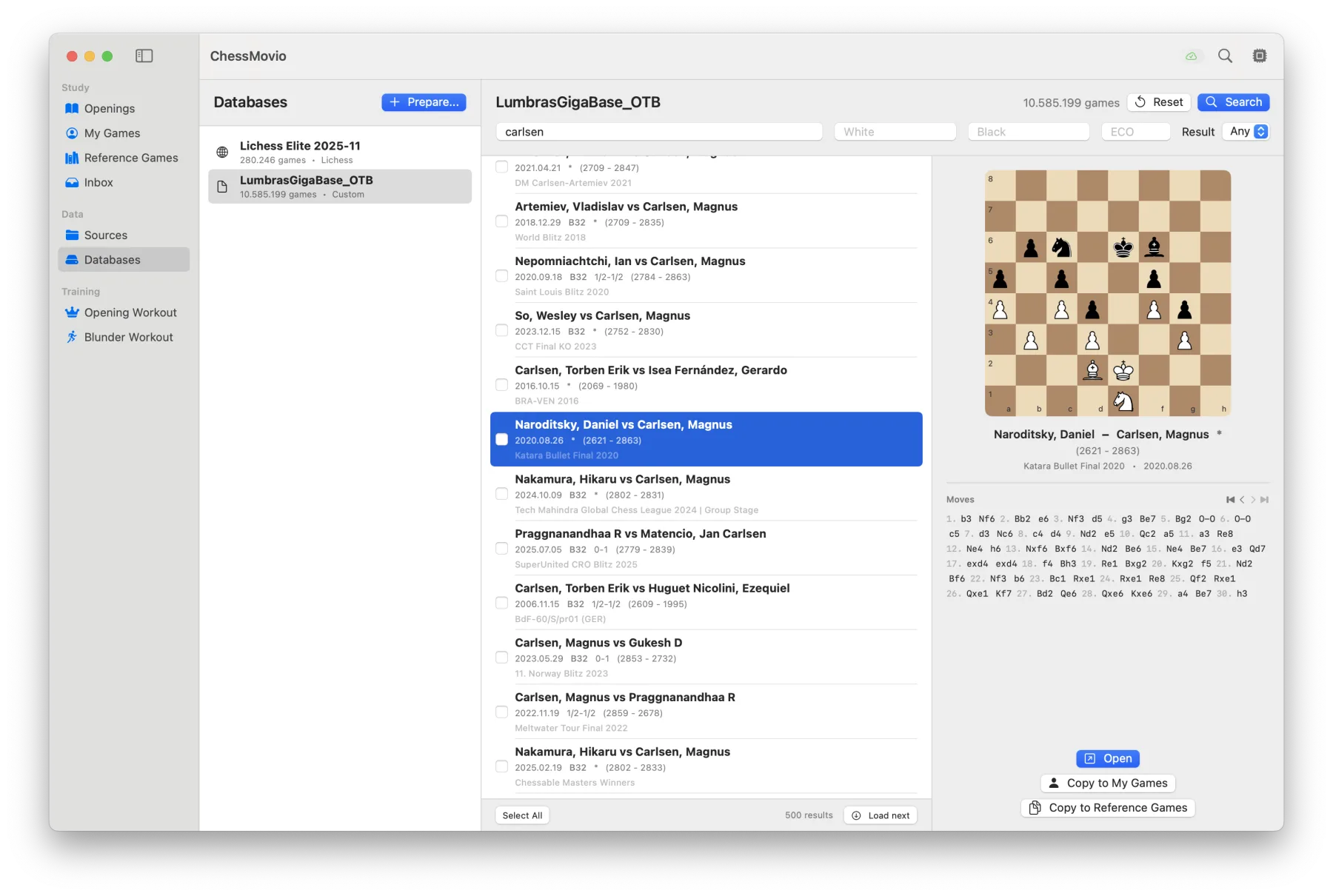
- Player name: Search for games by a specific player. Enter a partial or full name to find matching games.
- ECO code: Filter by opening classification. Enter an ECO code (e.g., B90 for the Najdorf Sicilian) to find games in that opening system.
- Result: Filter by game outcome -- White wins (1-0), Black wins (0-1), or draws (1/2-1/2).
You can combine multiple filters to narrow your search. For example, search for all games by "Carlsen" in the B90 ECO code to find Magnus Carlsen's Najdorf games.
Search Results
Search results appear as a list of games matching your criteria. Each result shows the players, result, date, and opening information. You can scroll through results and select any game to view it.
Browsing and Viewing Games
Select any game from the search results to view it on the chess board. The game viewer displays the full move list and allows you to navigate through the game move by move. You can activate the engine to analyze positions within the viewed game.
Since external database games are read-only in their source database, viewing is non-destructive -- you are simply reading data from the mounted archive.
Importing Games from External Databases
When you find a game worth studying in detail, you can import it into your ChessMovio library:
- View the game you want to import.
- Use the import action from the toolbar or context menu.
- Choose whether to import it as a Reference Game or as one of your own games (My Games).
- The game is copied into ChessMovio's internal database.
Once imported, the game appears in the appropriate tab (Reference Games or My Games) and you can annotate it, run game reviews, and use all the features available for internal games.
This workflow is ideal for building a focused study collection: search broadly in the external database, find the most relevant and instructive games, and import just those into your curated library.