 ChessMovio
 Settings & Premium
Configure the app and unlock premium features
The Settings screen is where you configure ChessMovio to suit your preferences, manage your data, adjust engine behavior, and unlock premium features. Access settings from the main navigation or the gear icon.
General Settings
The General section contains basic app configuration:
- Player Name -- Enter your name as you want it displayed throughout the app. This is used in session results and other personalized areas of the interface.
 The general settings section where you set your player name
Premium
ChessMovio offers a one-time Premium purchase that unlocks additional capabilities beyond the free version. Premium is managed through Apple's StoreKit, so your purchase is handled securely through your Apple ID.
What Premium Includes
- Database feature -- Access the full database functionality for managing and querying your chess data.
- Extended import limits -- Import larger PGN files, more Lichess studies, and more games without hitting free-tier limits.
- AI Integration (macOS) -- Connect Claude, Codex, and other MCP-compatible AI assistants to your games via the built-in MCP server. See the AI Integration page for setup details.
- Additional features -- As ChessMovio develops, new premium features will be added and included with your purchase.
Managing Your Purchase
The Premium section in settings shows:
- Your current premium status (active or not purchased).
- A Purchase button to unlock premium if you are not yet a premium user.
- A Restore Purchases button to recover your purchase on a new device or after reinstalling the app.
- A list of premium benefits so you can see exactly what is included.
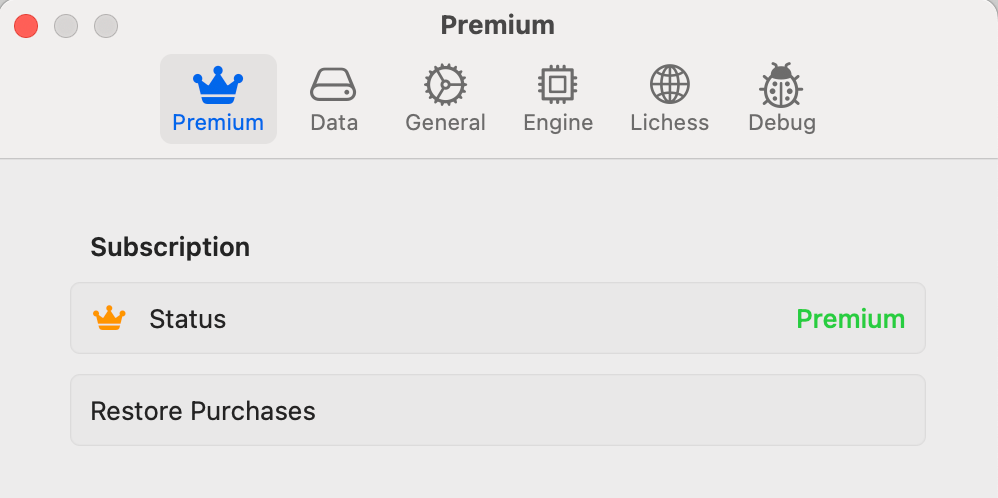 The premium store screen listing benefits and purchase options
Tip: If you have already purchased Premium on another device signed into the same Apple ID, use the Restore Purchases button to activate it on your current device.
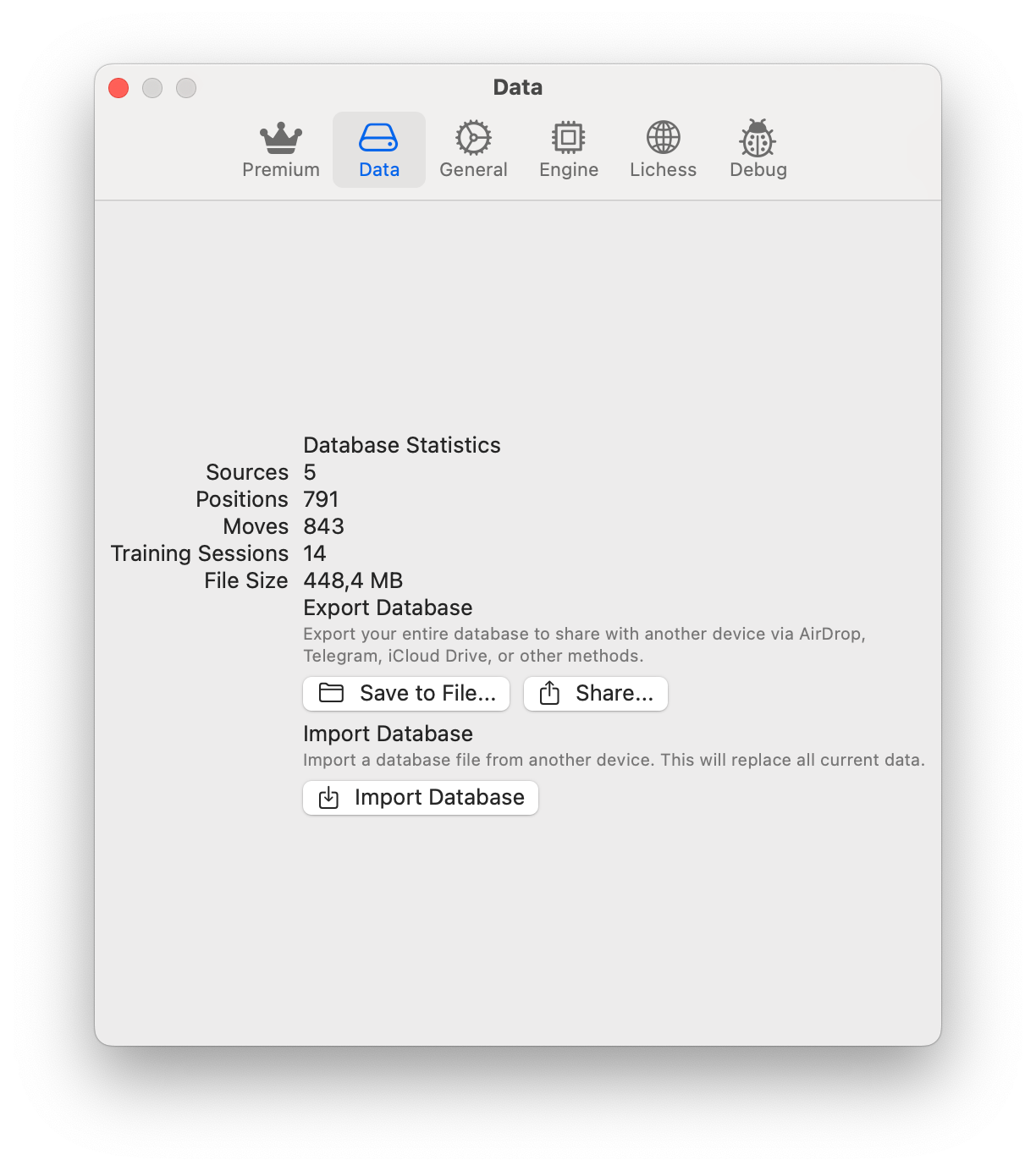
Data Management
The Data Management section gives you visibility into your app's storage and sync status:
- Database status -- Shows whether the database is operational and its current size on disk. This helps you understand how much space your imported games, opening trees, and training data occupy.
macOS only: CloudKit sync details are displayed in this section. You can see the sync status (whether sync is active, paused, or encountering errors) and details about what data is being synchronized across your devices.
Engine Settings
Configure the built-in Stockfish engine:
- Binary management -- View information about the bundled Stockfish binary.
- Depth -- Set the maximum search depth for engine analysis. Higher values produce more accurate evaluations but require more processing time and battery. The default depth is suitable for most analysis scenarios. See the Engine Analysis page for more details on using the engine.
Lichess Settings
The Lichess section shows your current connection status and provides controls to connect or disconnect your Lichess account. For detailed information on how to connect and use the Lichess integration, see the Lichess Integration page.
Recommendations
- Set your player name early so that session results and statistics are personalized from the start.
- Consider Premium if you plan to import large collections of games and studies. The extended import limits make it much easier to build a comprehensive training library.
- Check Data Management periodically to monitor your database size, especially if you import many games and sources.