 ChessMovio
 My Games
Import, annotate, and analyze your personal chess games
The My Games tab is your personal game library within ChessMovio. Here you can import your games from PGN files, annotate them with comments, symbols, arrows, and bookmarks, run engine analysis, review your mistakes, and send blunders to the Blunder Workout for targeted training.
Game Library Overview
When you open the My Games tab, you see a table listing all your imported personal games. The library provides a clear overview of your collection with sortable columns and filtering options.
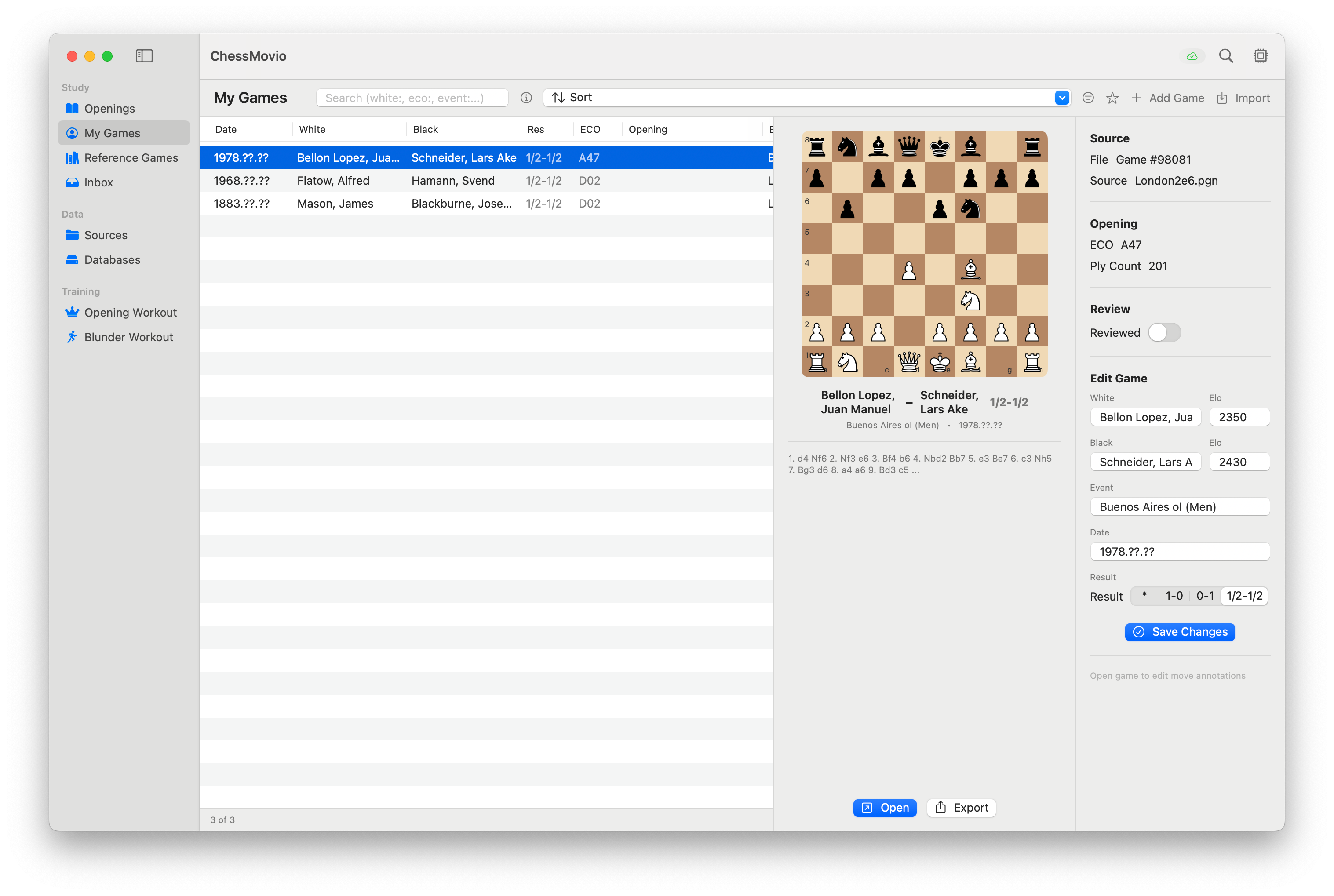 The game library table with columns for players, result, date, opening, and more.
Table Columns
The game table displays key information for each game:
- White / Black: Player names.
- Result: The game outcome (1-0, 0-1, 1/2-1/2).
- Date: When the game was played.
- Event: Tournament or event name.
- Opening / ECO: The opening classification and ECO code.
- Source: The PGN file the game was imported from.
- Moves: Number of moves in the game.
You can sort by any column by tapping or clicking the column header. Tap again to reverse the sort order.
Filtering Games
Use the filter controls to narrow down your game list.
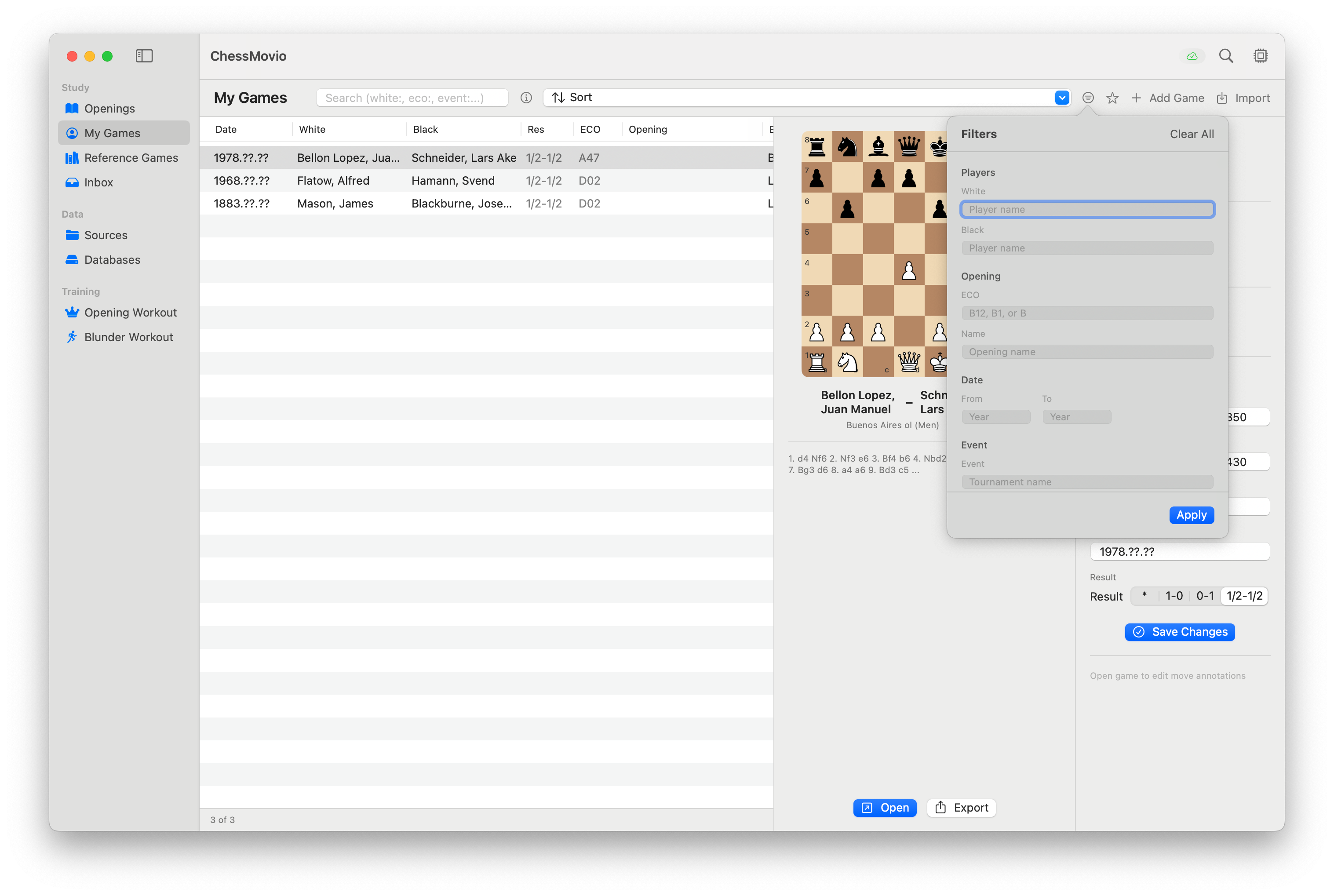 The filter panel for searching and narrowing your game collection.
You can filter by player name, date range, opening, result, or any combination of criteria. This is especially helpful when you have a large collection and want to review games from a specific tournament or against a particular opponent.
Game Workspace
Selecting a game from the library opens the game workspace, which is your primary environment for studying and annotating individual games.
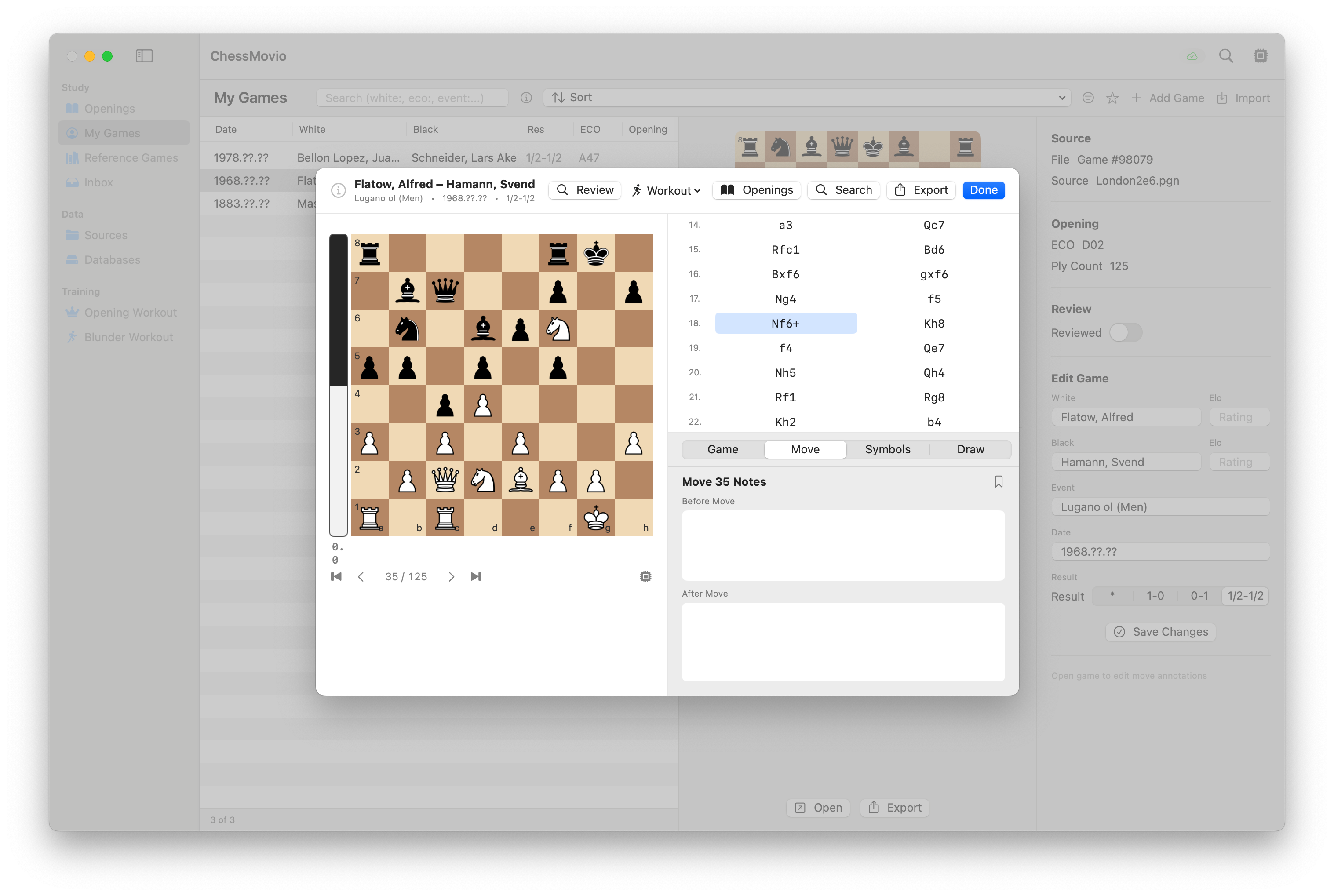 The game workspace showing the chess board, move list, and annotation panel.
The workspace consists of several interconnected areas:
Chess Board
The interactive chess board displays the current position. You can:
- Navigate through the game by clicking moves in the move list.
- Flip the board perspective to view from either side.
- See the engine evaluation bar when the engine is active.
Move List
The move list shows the complete game notation. The current move is highlighted. You can click any move to jump to that position. Variations and sub-variations, if present, are shown inline or as expandable branches.
Annotations Panel
The annotations panel is where you add your own analysis and notes to the game. It has three tabs:
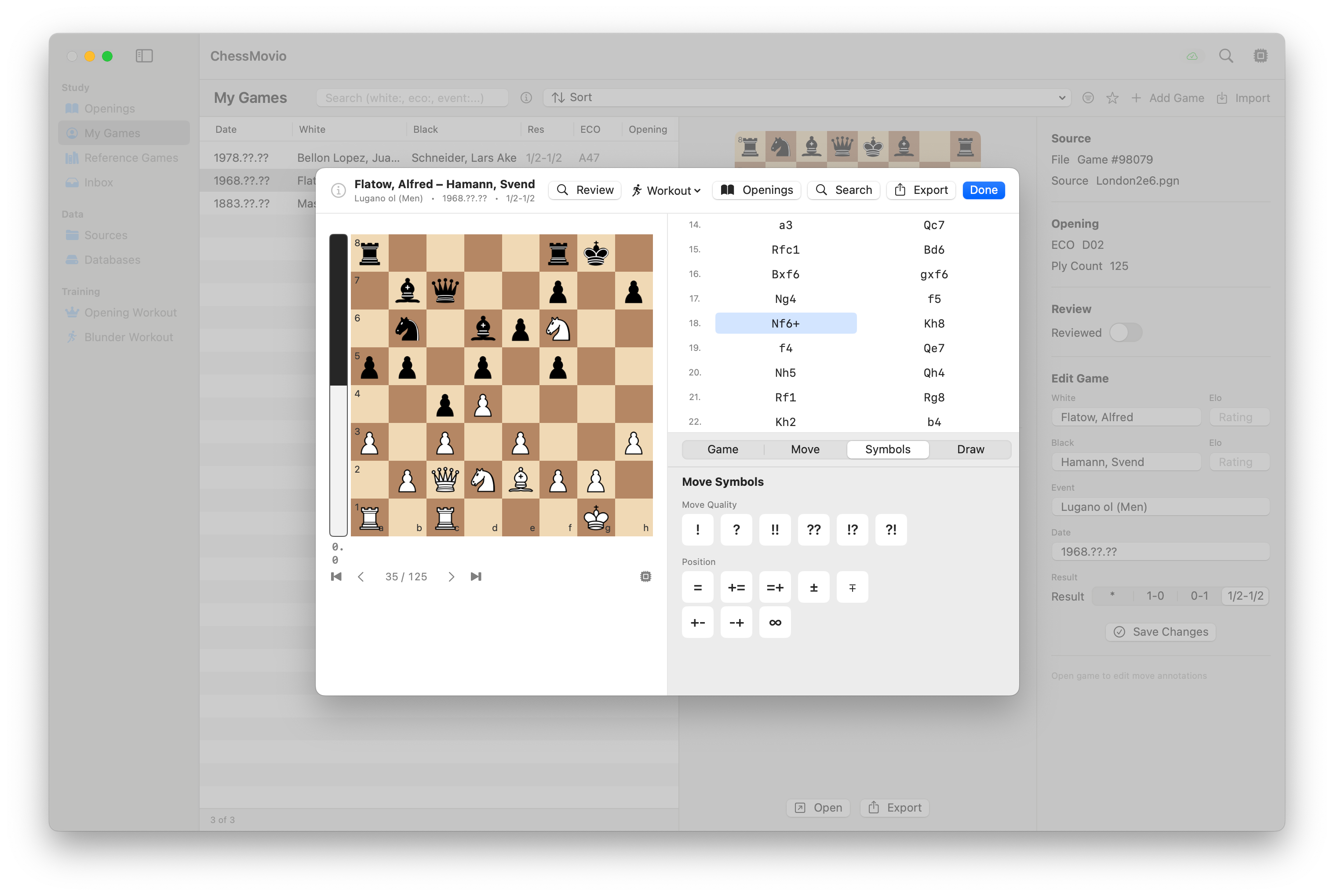 The annotations panel showing the Comments, Symbols, and Drawings tabs.
Comments Tab
Add text comments to any position in the game. Comments are saved per move and appear in the move list alongside the notation. Use comments to record your thoughts, plans you considered, or coaching notes.
Symbols Tab (NAGs)
Add standard chess annotation symbols (NAGs - Numeric Annotation Glyphs) to moves:
- Move quality:
!(good),!!(brilliant),?(mistake),??(blunder),!?(interesting),?!(dubious). - Position assessment: symbols for equal, slight advantage, clear advantage, winning, unclear, compensation, and more.
Symbols appear inline with the move notation and are part of the standard PGN format.
Drawings Tab
Add visual annotations directly on the board:
- Arrows: Draw arrows between squares to show plans, threats, or key lines.
- Square highlights: Color individual squares to mark important points.
- Drawings are saved per position and appear whenever you navigate to that move.
Game Inspector
The game inspector shows and allows editing of the game's metadata:
- Source: The PGN source filename the game was imported from.
- Player names, ratings, and titles.
- Event, site, round, and date information.
- Result and time control.
- Opening name and ECO code.
You can edit any of these fields to correct or complete the game's header information.
Open in Openings
From the game workspace toolbar, click the Openings button to jump to the current board position in the Openings tab. ChessMovio automatically switches to the correct mode (My Games, Reference, or Ideas) based on the game's source type and navigates to the position. This lets you see how the current position fits into your broader opening repertoire.
Engine Analysis
Activate the bundled Stockfish engine to analyze any position in your game:
- Toggle the engine from the toolbar or the board overlay button.
- The evaluation bar appears beside the board.
- Navigate through the game to see the engine's assessment of each position.
- The engine displays the best move, principal variation, search depth, and nodes per second.
Tip: Let the engine run for several seconds on critical positions to get a deeper and more accurate evaluation.
Game Review
The game review feature provides a structured way to go through your game and classify each position:
- Start a game review from the toolbar.
- ChessMovio walks you through the game move by move.
- Positions are classified by engine evaluation changes: blunders, mistakes, and inaccuracies are flagged automatically.
- You can review each flagged position, see the engine's suggestion, and understand where you went wrong.
Sending to Blunder Workout
After a game review, you can send classified mistakes to the Blunder Workout for targeted training:
- Blunders, mistakes, and inaccuracies identified during review become training material.
- In the Blunder Workout, you will be shown these positions and asked to find the correct move.
- This creates a feedback loop: play games, review them, train on your specific weaknesses.
Adding a Game Manually
You can create a new game directly in ChessMovio by entering moves on the board or pasting PGN notation.
Premium feature: The Add Game feature requires a one-time ChessMovio Premium purchase.
Opening the Add Game Sheet
In the My Games tab, click the + (Add Game) button in the toolbar. This opens the Add Game sheet.
Entering Moves on the Board
The Add Game sheet displays an interactive chess board starting from the initial position. Make moves by dragging pieces on the board -- only legal moves are accepted. The move list updates below the board in standard algebraic notation as you play.
- Undo: Remove the last entered move.
- Swap Sides: Flip the board perspective.
Pasting PGN
If you have a game in PGN format, click Paste PGN to open a text editor. Paste your PGN text and click Parse & Load. ChessMovio parses the PGN, loads all moves onto the board, and fills in any available header information (player names, ratings, date, event, result). After loading, you can navigate through the game using the playback controls (start, back, forward, end).
Game Details
Below the board and move list, fill in the game metadata:
- White / Black: Player names.
- Elo: Player ratings.
- Date: The date the game was played.
- Result: Select the outcome (*, 1-0, 0-1, or 1/2-1/2).
- Event: Tournament or event name.
When you paste a PGN, these fields are populated automatically from the PGN headers. You can edit them before saving.
Saving
Click Save to add the game to your My Games library. The game needs at least one move before it can be saved. ChessMovio creates a source entry with a descriptive filename based on the player names, ratings, event, and date.
Importing Games
You can add games to your library in several ways:
- Add Game manually: Enter moves on the board or paste PGN notation using the Add Game button in the My Games toolbar (see above).
- PGN import via Sources: Import a PGN file through the Sources tab with the type set to "My Games."
- Lichess import: Connect your Lichess account and import games directly (see the Lichess section).
- Copy from Reference Games: If you find an instructive game in your reference collection, copy it to My Games so you can annotate it.
- Copy from Inbox: Browse games in the Inbox tab and use "Copy to My Games" to promote individual games.
- Copy from External Databases: Find a game in a mounted database and import it as your own game.
- Copy from Position Search results: Find games containing a specific position and copy them to My Games (see the Openings section on Position Search).
iOS: On iOS, you can also share PGN files from other apps directly to ChessMovio, and they will be available for import.