 ChessMovio
 Getting Started
Install ChessMovio and set up your first chess training session
Welcome to ChessMovio, a native chess training application for iOS and macOS. ChessMovio helps you master chess openings through spaced repetition, annotate your games, study master games, and analyze positions with a bundled Stockfish engine. This guide walks you through installation, initial setup, and importing your first chess data.
Installing ChessMovio
ChessMovio is available on the App Store for both iOS and macOS.
- iOS: Search for "ChessMovio" in the App Store on your iPhone or iPad. Tap Get to download and install.
- macOS: Open the Mac App Store, search for "ChessMovio," and click Get. The app requires macOS 14.0 (Sonoma) or later.
After installation, launch the app. You will see the main interface organized into three areas: Study, Data, and Training, each containing tabs for different features.
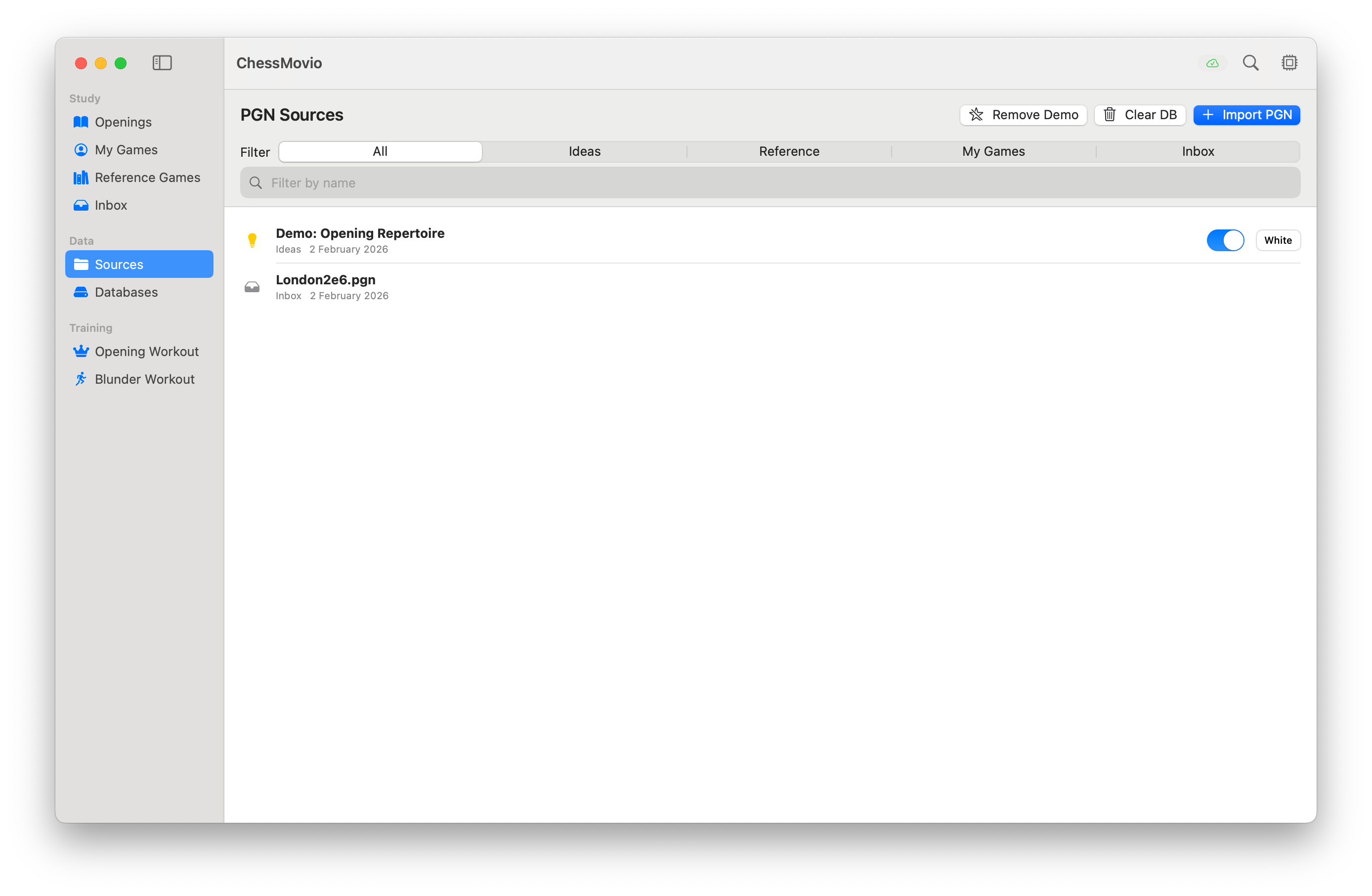 The app's main interface after first launch, showing the tab layout.
Setting Your Player Name
Before importing games or starting training, set your player name in Settings. This helps ChessMovio identify your games when importing PGN files.
- Navigate to the Settings tab.
- Under General, find the Player Name field.
- Enter your name as it appears in your PGN files (this is used for automatic color detection during import).
- The setting saves automatically.
Importing Your First PGN File
ChessMovio uses PGN (Portable Game Notation) files as its primary data source. You can import PGN files containing opening ideas, reference games, or your own games. There are several ways to get PGN files into the app.
Using the Sources Tab
The most straightforward method is through the Sources tab:
- Navigate to the Sources tab in the Data section.
- Tap the Import PGN button.
- Select a
.pgnfile from your device's file system, iCloud Drive, or other connected storage. - ChessMovio will parse the file and prompt you to configure the import: choose the source type (Ideas, Reference Games, My Games, or Inbox) and the color.
- Confirm the import. The app processes the PGN and creates the opening tree, positions, and moves in its database.
Tip: ChessMovio can automatically detect the color from the filename. If your file is named something like
Sicilian [w].pgn, the app recognizes[w]as White and[b]as Black.
Using File Sharing (iOS)
On iOS, you can also share PGN files directly to ChessMovio:
- Open a PGN file from Mail, Files, Safari, or any other app.
- Tap the Share button and select ChessMovio from the share sheet.
- The app opens and begins the import flow.
Demo PGN (macOS)
On macOS, a built-in demo PGN is available so you can explore the app immediately without importing your own files:
- Go to the Sources tab.
- Toggle the Demo PGN option to load a sample opening repertoire.
- This populates the opening tree with example lines you can browse and study right away.
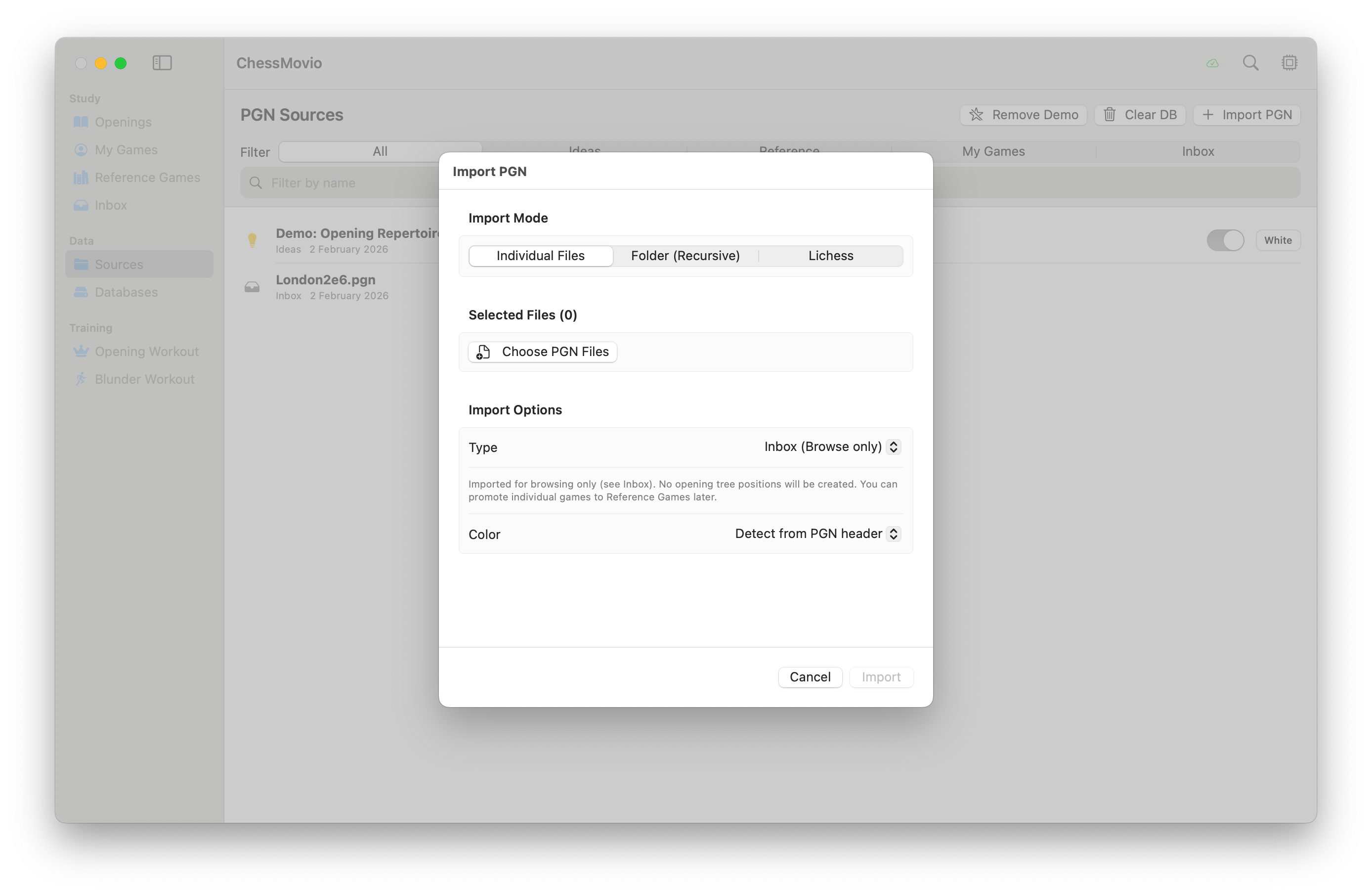 The import dialog after selecting a PGN file, showing source type and color options.
What to Do Next
Once you have imported at least one PGN file, you are ready to explore ChessMovio's features:
- Study openings: Head to the Openings tab to navigate your opening tree and review lines.
- Browse your games: Visit My Games to see imported personal games, add annotations, and run engine analysis.
- Start training: Jump to the Opening Workout tab to begin spaced repetition training on your imported repertoire.
- Manage sources: Use the Sources tab to see all your imported PGN files, add more, or remove existing ones.
ChessMovio is designed for incremental learning. Import a few key openings first, train on them, and gradually expand your repertoire as you master each line.