 ChessMovio
 Openings
Navigate and study your chess opening repertoire
The Openings tab is the heart of ChessMovio's study experience. It provides an interactive chess board paired with a navigable opening tree built from your imported PGN files. Here you can explore your entire repertoire, review coach-curated ideas, study master games, and send specific positions to training.
The Opening Tree Interface
The Openings view is divided into several areas: the chess board on one side, the move tree on the other, and controls for filtering and configuration. On macOS, the panel dividers are draggable so you can adjust the layout to your preference.
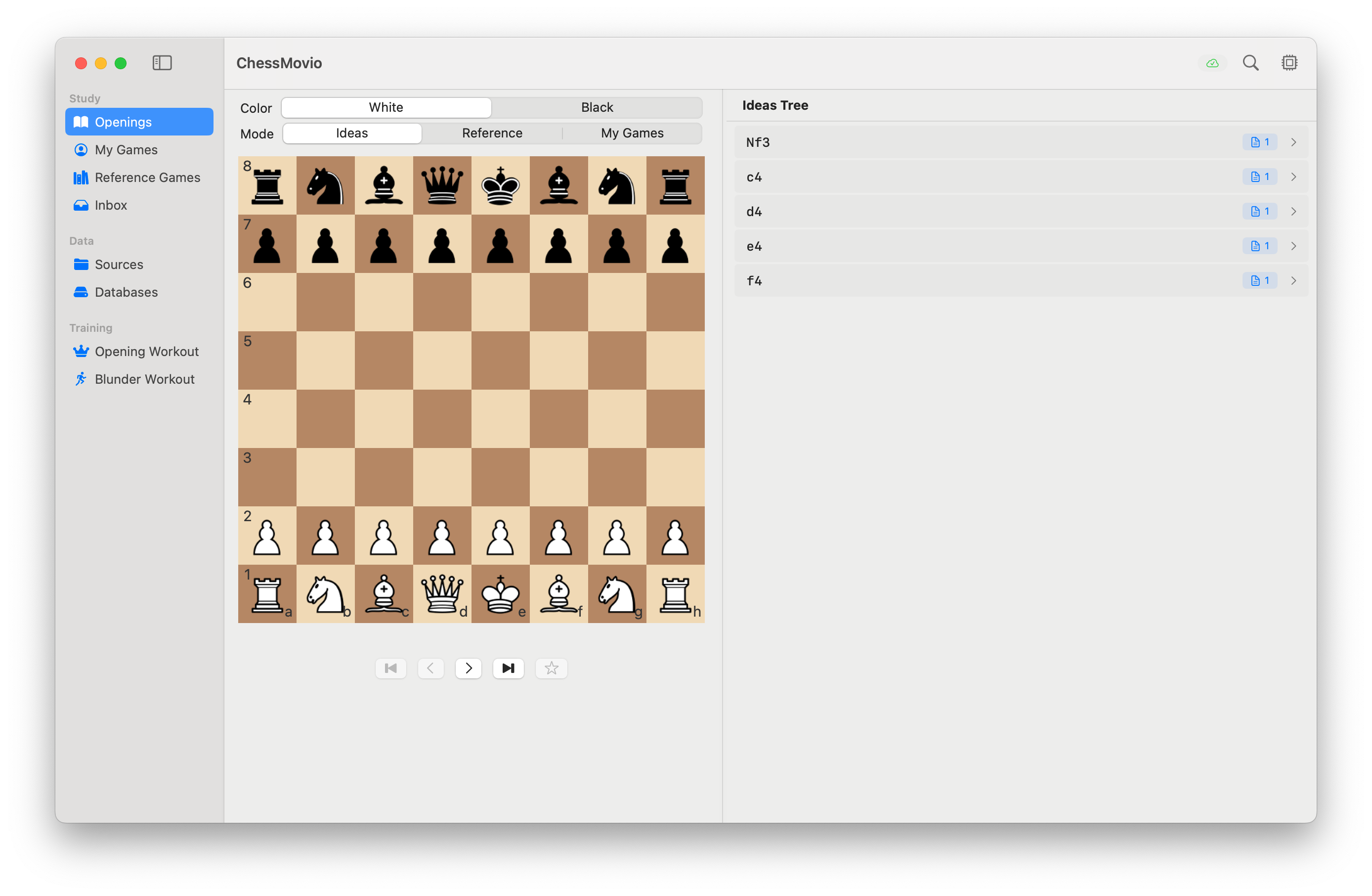 The Openings interface with the chess board on the left and the move tree on the right.
Board Controls
The chess board displays the current position. You can interact with it in several ways:
- Perspective toggle: Flip the board to view from White's or Black's perspective using the board orientation button.
- Engine evaluation bar: When the engine is active, a vertical evaluation bar appears alongside the board showing the current position's assessment. See the engine section below for details.
- Move history: Below or beside the board, the move list shows the path from the starting position to the current position.
- Move comments: When a position has annotated comments from your PGN files, they appear in the comments area, providing coaching notes and explanations for the current move or position.
Three Modes
The Openings tab supports three distinct modes, each presenting a different slice of your data. You can switch between them using the mode selector.
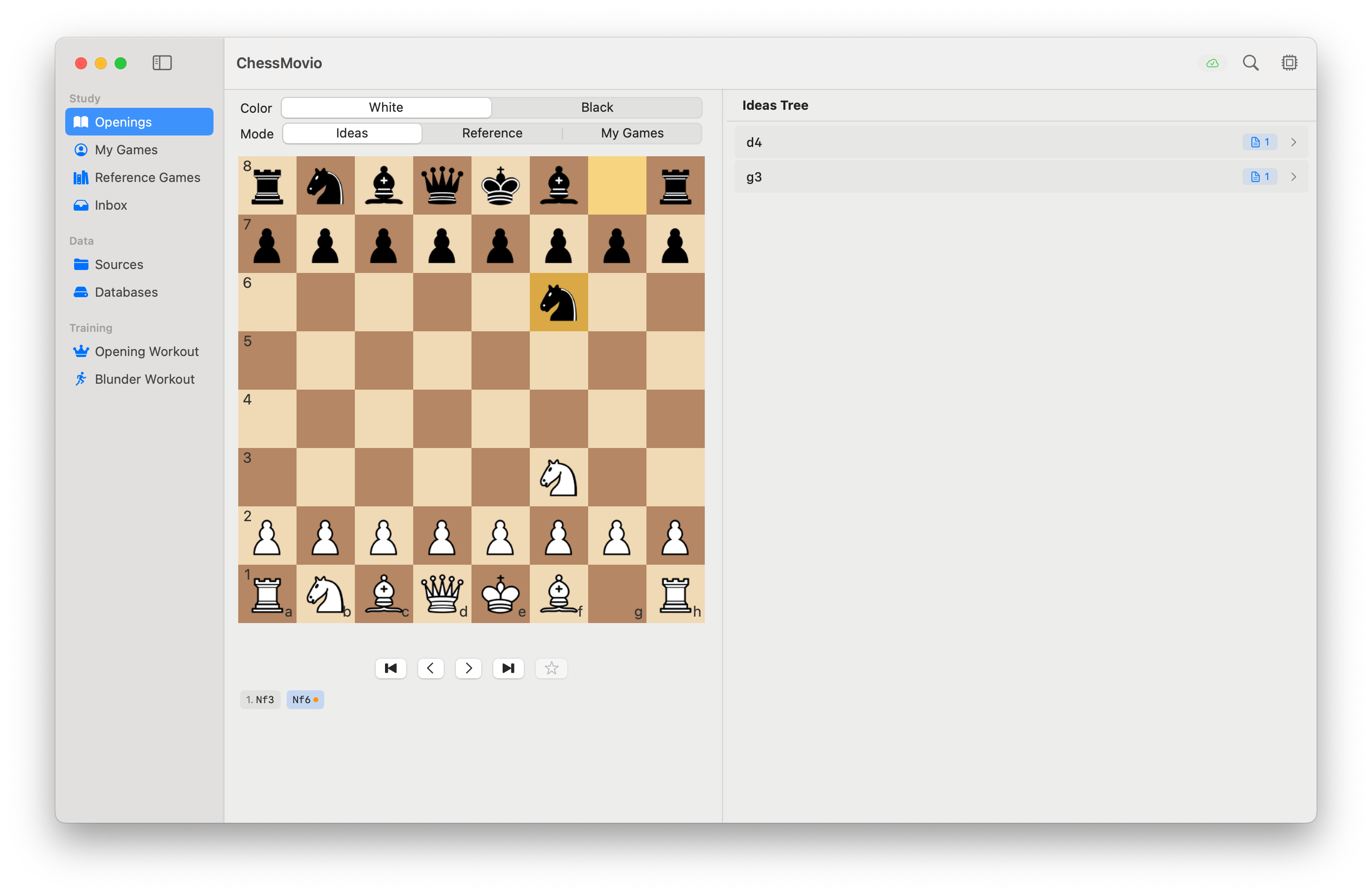 Mode selector showing Ideas, Reference Games, and My Games options.
Ideas
The Ideas mode displays coach-curated opening lines imported from PGN files marked as "Ideas" during import. These are typically well-annotated repertoire files with comments explaining the plans and ideas behind each move. This is the primary mode for studying your prepared openings.
Reference Games
The Reference Games mode shows opening lines extracted from master games in your reference collection. This lets you see how strong players have handled the same positions, giving you practical examples alongside your theoretical preparation.
My Games
The My Games mode shows openings derived from your personal game collection. This helps you see which openings you actually play in practice and how your real games compare to your prepared repertoire.
Source Filtering
Within each mode, you can filter the tree to show lines from specific PGN sources. This is useful when you have multiple files covering the same opening complex and want to focus on a particular set of lines.
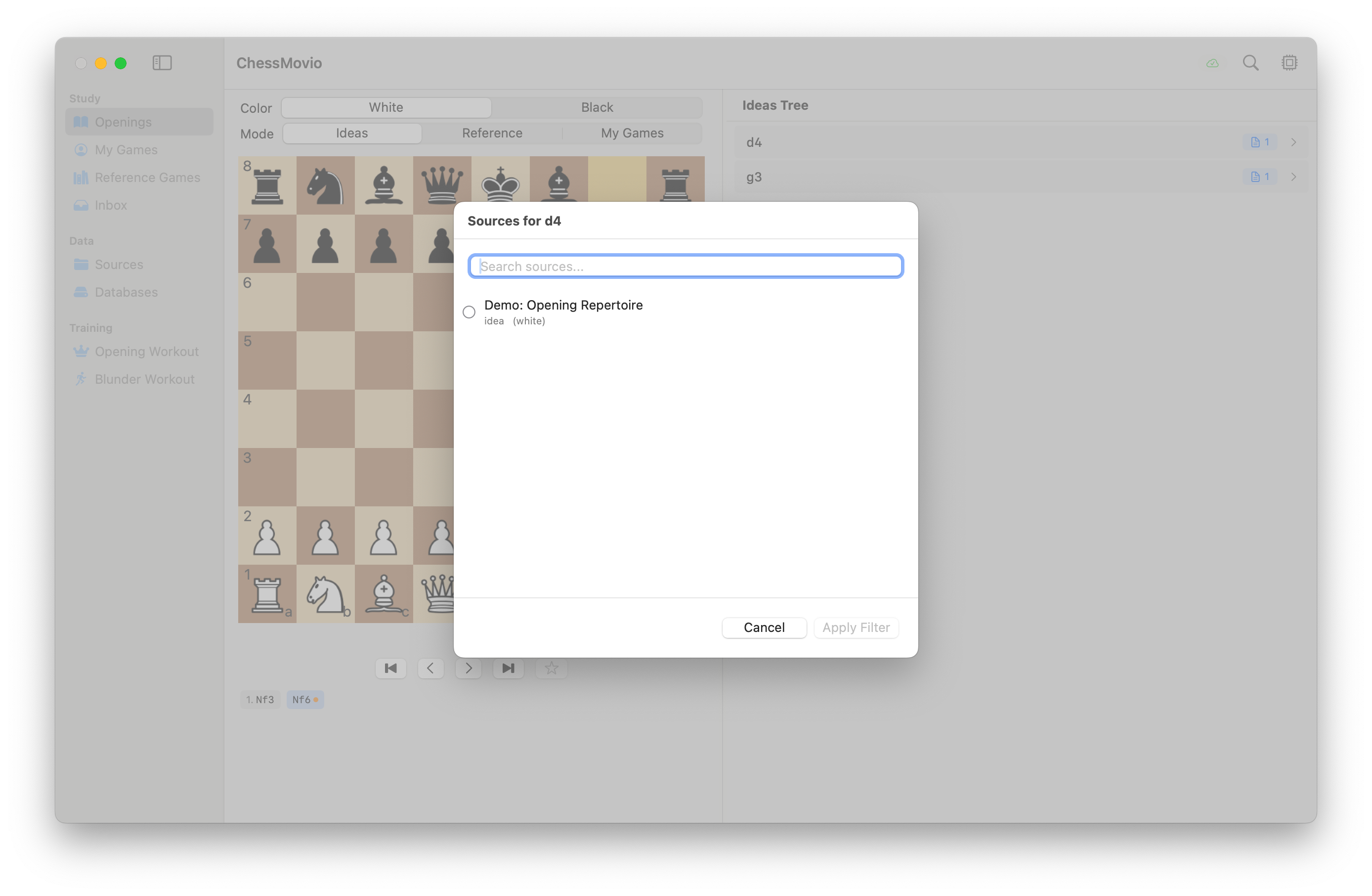 The source filter panel, allowing you to select which imported PGN files contribute to the displayed tree.
- Open the source filter from the toolbar.
- Check or uncheck individual sources to include or exclude them from the tree.
- The tree updates in real time to reflect your filter selection.
Navigating the Tree
You can navigate the opening tree by tapping or clicking on moves in the tree panel, or by using keyboard shortcuts.
Mouse and Touch
- Tap any move in the tree to jump to that position on the board.
- Expand and collapse variation branches using the chevron toggle. Collapsing a parent variation also collapses all child variations inside it.
- The tree loads lazily: when you reach the edge of loaded data, a ... indicator appears at the end of the variation. Click it to load the next batch of moves. You can also press the right arrow key at the last loaded move to automatically expand and continue navigating.
Keyboard Navigation
Keyboard navigation is available for efficient study, especially on macOS:
- Right arrow: Move to the next move (first child). At the end of loaded moves, automatically loads more.
- Left arrow: Go back to the parent move.
- Up arrow: Switch to the previous sibling variation.
- Down arrow: Switch to the next sibling variation.
This allows you to quickly walk through lines and compare variations without reaching for the mouse.
Engine Integration
You can activate the bundled Stockfish engine from the toolbar to see real-time evaluation of any position in the opening tree.
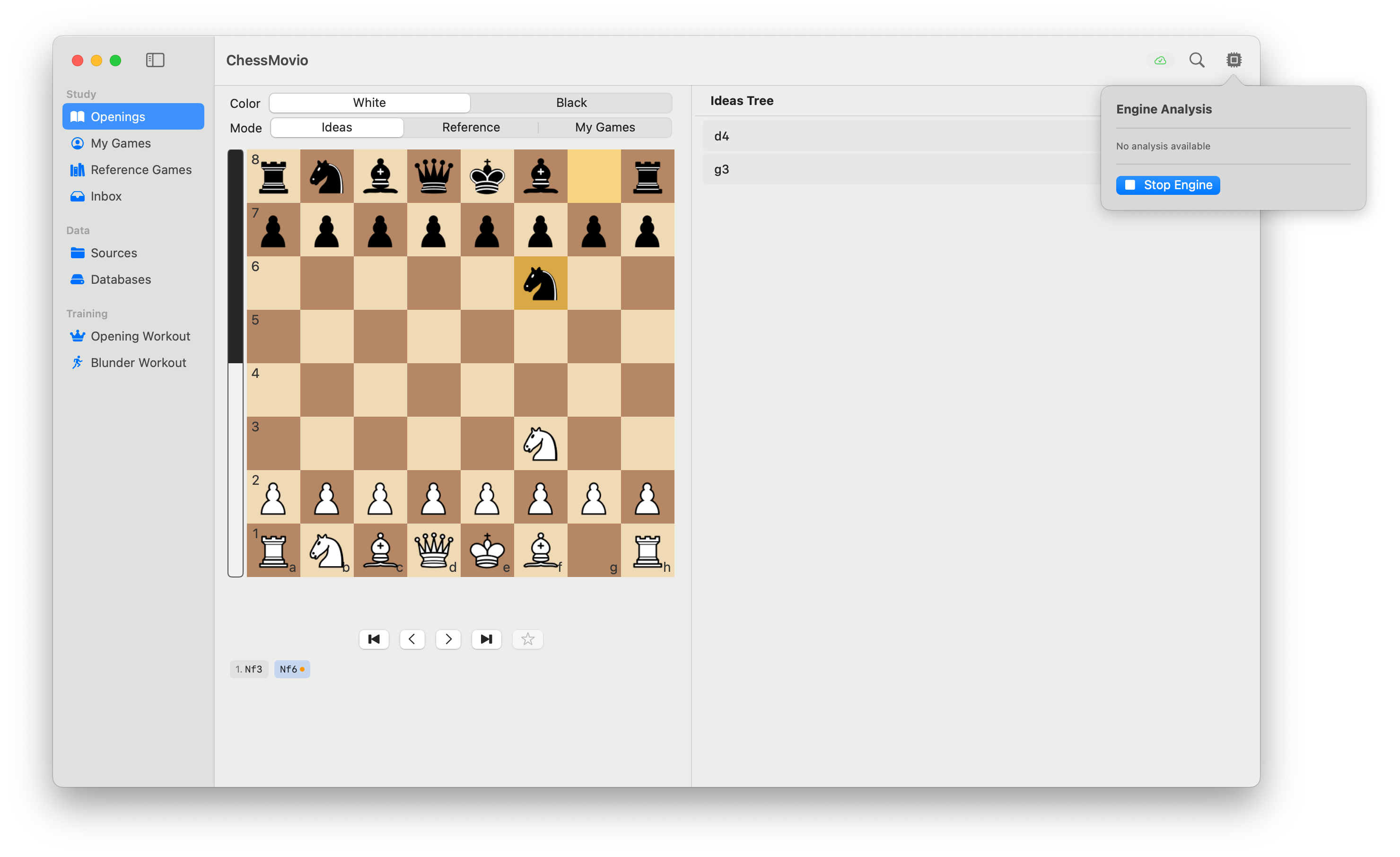 The engine evaluation bar and analysis information displayed alongside the opening tree.
When the engine is active, you will see:
- Evaluation bar: A vertical bar beside the board indicating the position's assessment.
- Best move: The engine's top recommendation.
- Principal variation: The engine's projected best line of play.
- Depth and speed: Current search depth and nodes per second.
Tip: Use the engine to verify your opening preparation. If the engine disagrees with a line in your repertoire, it may be worth reviewing that variation with your coach.
Position Search
The Position Search feature lets you find games in your library (and external databases) that contain a specific board position. This is useful for finding practical examples of positions from your repertoire.
Premium feature: Position Search requires a one-time ChessMovio Premium purchase.
Accessing Position Search
Position Search is available from two places:
- Openings toolbar: Click the magnifying glass icon ("Search Position") in the toolbar. The search starts with the position currently displayed on the board.
- Game Workspace toolbar: While reviewing a game, click the "Search" button to find other games that reach the current position.
Configuration
When you open Position Search, you see a configuration screen with:
- Interactive chess board: The board shows the position you want to search for. You can make moves on the board to adjust the position.
- FEN field: A text field displaying the current FEN. You can also type or paste a FEN directly to set the search position.
- Source selection: Toggle which collections to search:
- My Games: Your personal game collection.
- Reference Games: Your reference game library.
- Inbox: Games in the Inbox tab.
- External Databases (macOS only): Any mounted external databases appear here as additional toggles.
- Filters:
- Min Rating: Only return games where at least one player has a rating equal to or above this value.
- Max Results: Limit the number of results returned (default: 100).
Select at least one source, then tap Search to run the query.
First-Time Indexing
The first time you search, ChessMovio builds a position index for your internal games. This happens automatically and a progress indicator shows how many games have been indexed. Once built, the index is reused for future searches.
Search Results
Results are grouped by source (My Games, Reference Games, Inbox, and each external database). Each result shows:
- Player names and ratings.
- ECO code and year.
- The ply number where the searched position occurs.
- The game result.
Tap a game to open it in the Game Workspace, starting at the ply where the position was found. On macOS, the results list includes a preview pane on the right side.
Keep Results
After a search, you can tap Keep Results to save the result set as a temporary sidebar tab called "Search Results." This lets you close the search sheet and continue browsing results from the main sidebar, similar to the Games Library layout. From the Search Results view, you can:
- Select and preview games.
- Open games in the full workspace by double-clicking (macOS) or tapping.
- Copy external database games to My Games or Reference Games.
The Search Results tab remains in the sidebar until you close the app or run a new search with "Keep Results."
Adding Positions to Training
From the Openings tab, you can send positions directly to the Opening Workout for spaced repetition training:
- Navigate to the position you want to train.
- Use the "Add to Training" action (available in the toolbar or context menu).
- The position and its expected continuations are registered as training material.
- Head to the Opening Workout tab to begin drilling these positions.
This workflow lets you study first, then reinforce your knowledge through active recall.