 ChessMovio
 Lichess Integration
Connect your Lichess account to import studies and games
ChessMovio integrates with Lichess, the free and open-source chess server, allowing you to import your studies and games directly into the app. This makes it easy to bring your existing Lichess content into ChessMovio for deeper analysis and spaced repetition training.
Connecting Your Lichess Account
ChessMovio uses the standard OAuth2 authentication flow to connect to your Lichess account securely. Your Lichess password is never shared with ChessMovio -- the connection uses a secure token that you can revoke at any time from your Lichess account settings.
To connect:
- Open ChessMovio settings and navigate to the Lichess section.
- Tap Connect to Lichess.
- You will be redirected to the Lichess website (or an in-app browser) to authorize ChessMovio.
- After granting permission, you are returned to ChessMovio with your account linked.
Once connected, the settings screen shows your connection status, username, title (if you have one, such as FM, IM, GM), and patron status (if you are a Lichess patron).
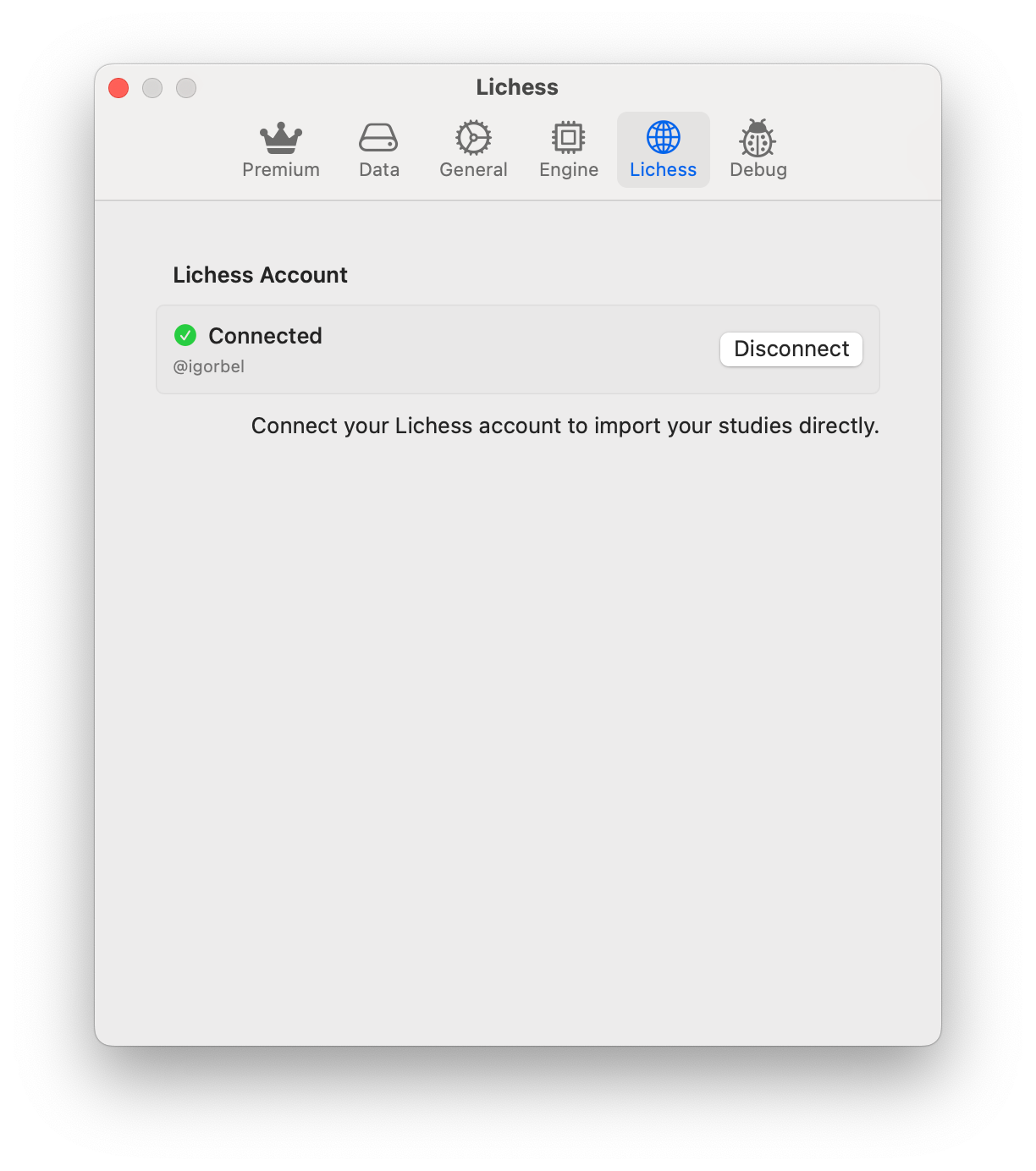 The Lichess settings section showing connection status and account details
Importing Studies
Lichess Studies are collaborative analysis boards where users organize opening lines, game annotations, and training material. ChessMovio can browse and import your studies directly.
Browsing Studies
The study browser displays your Lichess studies with search and filter capabilities. You can scroll through your collection or use the search bar to find a specific study by name.
Importing a Study
When you select a study to import:
- Choose the target type for the imported content:
- Ideas -- Opening ideas and analysis for training.
- Reference Games -- Master games for review.
- User Games -- Your own games for analysis.
- Select the color (White or Black) that the study content is relevant to.
- Confirm the import.
The study chapters are converted into ChessMovio's internal format and become available in the appropriate tab (Openings, Reference Games, or My Games).
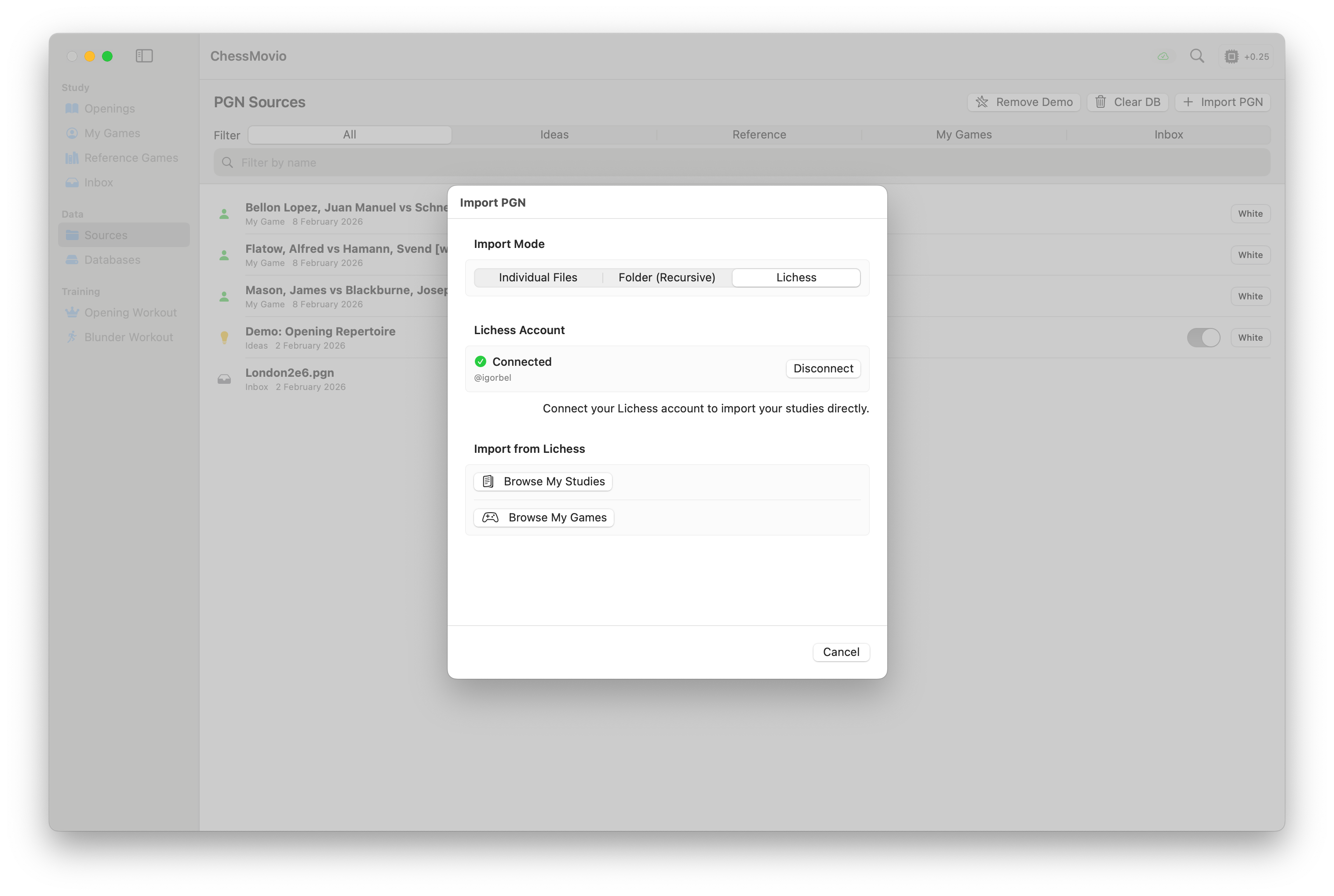 Browse your Lichess studies and select which ones to import
Tip: Organizing your Lichess studies by opening or theme before importing makes it easier to manage your content within ChessMovio. Each study becomes a separate source in the app.
macOS only: Premium users have extended import limits, allowing larger studies and more chapters to be imported at once.
Importing Games
Beyond studies, you can also import your played games from Lichess. The game browser provides several filters to help you find the right games:
Filters
- Time Control -- Filter by Bullet, Blitz, Rapid, Classical, or Correspondence.
- Game Type -- Choose between Rated and Casual games.
- Color -- Show only games where you played as White or Black.
- Opponent -- Search for games against a specific opponent by username.
Import Process
Select one or more games from the filtered list and import them. The games are added to your My Games collection with full move history, and you can then annotate and analyze them within ChessMovio.
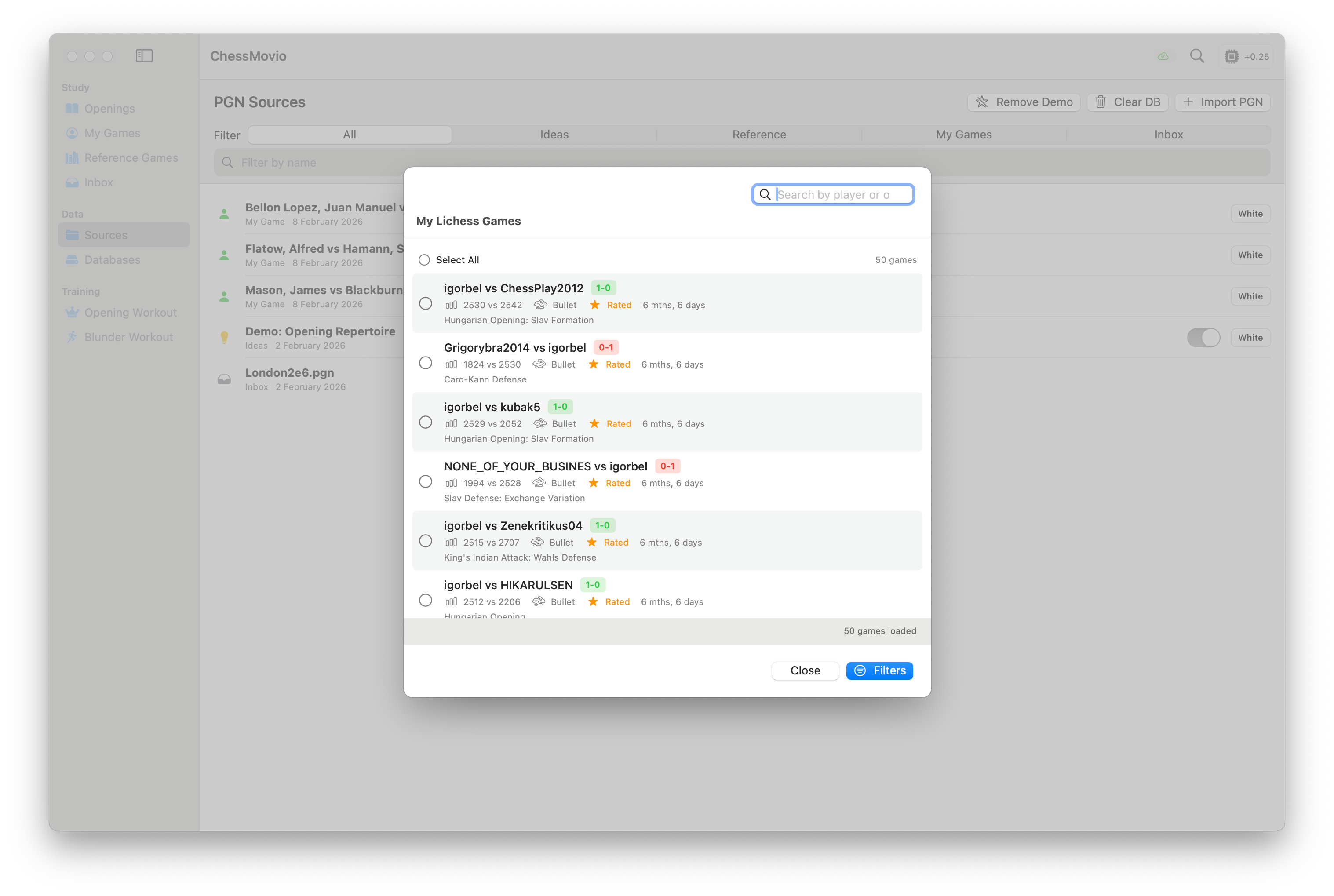 Filter and import your Lichess games by time control, type, color, and opponent
Tip: Importing your rated games after each tournament or playing session and then analyzing them with the engine is an excellent study habit. You can send mistakes directly to the Blunder Workout for targeted training.
Disconnecting Your Account
If you want to unlink your Lichess account from ChessMovio, go to the Lichess section in settings and tap Disconnect. This removes the stored authentication token from the app. Your previously imported content remains in ChessMovio -- only the live connection is severed. You can reconnect at any time by going through the OAuth flow again.